How to delete your Bixby account
Important Note: The information on this page is for Hong Kong products only. Models, sequences or settings will vary depending on location and/or where the product had been purchased. To be redirected to your local support page please click here.
If you no longer wish to use Bixby, you can delete your account at any time. Deleting your account will permanently remove your access to Bixby and its features. The process is simple and completed through the app. Please follow the guide below to delete your Bixby account.
Delete your Bixby account
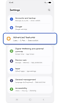

Step 1. Open Settings > Tap Advanced features.
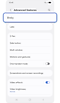

Step 2. Tap Bixby.
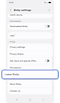

Step 3. Tap Leave Bixby.
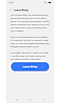

Step 4. Confirm by tapping Leave Bixby.
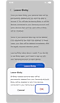

Step 5. Tap OK and confirm your identity by entering your Samsung account credentials to finalise leaving Bixby.
Notes:
- The extent of Bixby’s features and content may vary depending on the residing country, language, device model and OS version.
- The user interface may change depending on the device model.
If the above information does not match what your product is showing, you may check the User Manual for your product. If you are unable to solve the problem, please contact us for further assistance.
Thank you for your feedback!
Please answer all questions.
RC01_Static Content : This text is only displayed on the editor page