Setting up your Samsung TV using your Samsung Account
Important Note: The information on this page is for Hong Kong products only. Models, sequences or settings will vary depending on location and/or where the product had been purchased. To be redirected to your local support page please click here.
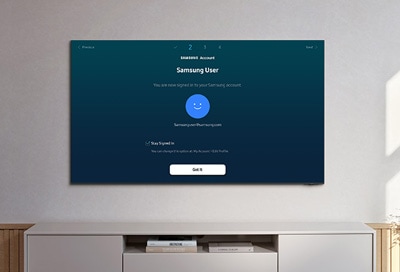
A Samsung Account gives you access to a variety of services, including TV apps and smart features. If you have an existing Samsung Account, you can use the credentials to set up your Samsung TV by following the on-screen instructions.
Note: To log in to your Samsung Account, your TV must be connected to the internet.

If you're logged in to your Samsung account on your Galaxy phone, you can log in to your TV with the same account.

Note: You will need to log in to your Samsung account after setting up your network connection.
Tap Sign it in now when the pop-up window appears.


You can register your credit card. Or, you can simply stop at this point.

Notes:
- If you are having trouble with your Samsung Smart TV, you can check for available software updates, as these may contain a solution to your problem.
- Device screenshots and menus may vary depending on the device model and software version.
If the above information does not match what your product is showing, you may check the User Manual for your product. If you are unable to solve the problem, please contact us for further assistance.
Thank you for your feedback!
Please answer all questions.
RC01_Static Content : This text is only displayed on the editor page